
MacOS Installation Guide for Stirling PDF
Stirling PDF for Mac is available as a native desktop application or can run as a server using the JAR file.
Desktop Application (Recommended)#
Native Mac desktop app with all PDF tools available.
What You Get#
- ✅ Native macOS application - Optimized for both Apple Silicon and Intel Macs
- ✅ No login required - Install and start using PDF tools right away
- ✅ Processes files locally - All your PDF processing stays on your Mac
- ✅ Optional server connection - Connect to Stirling Cloud or your own self-hosted server for advanced tools like OCR and document conversions
- ✅ All local tools included - Merge, split, rotate, sign, and more work without any server
- ✅ Better performance - Native speed on M1/M2/M3 chips
- ✅ No external browser needed - Uses the built-in window
- ✅ Menu bar integration - Feels like a native Mac app
Installation#
Pick whichever method you prefer. Both install the same desktop app.
1. Download the installer: Download Stirling PDF for Mac
The DMG is a universal binary that runs natively on both Apple Silicon (M1/M2/M3/etc.) and Intel Macs - no need to pick a build for your chip.
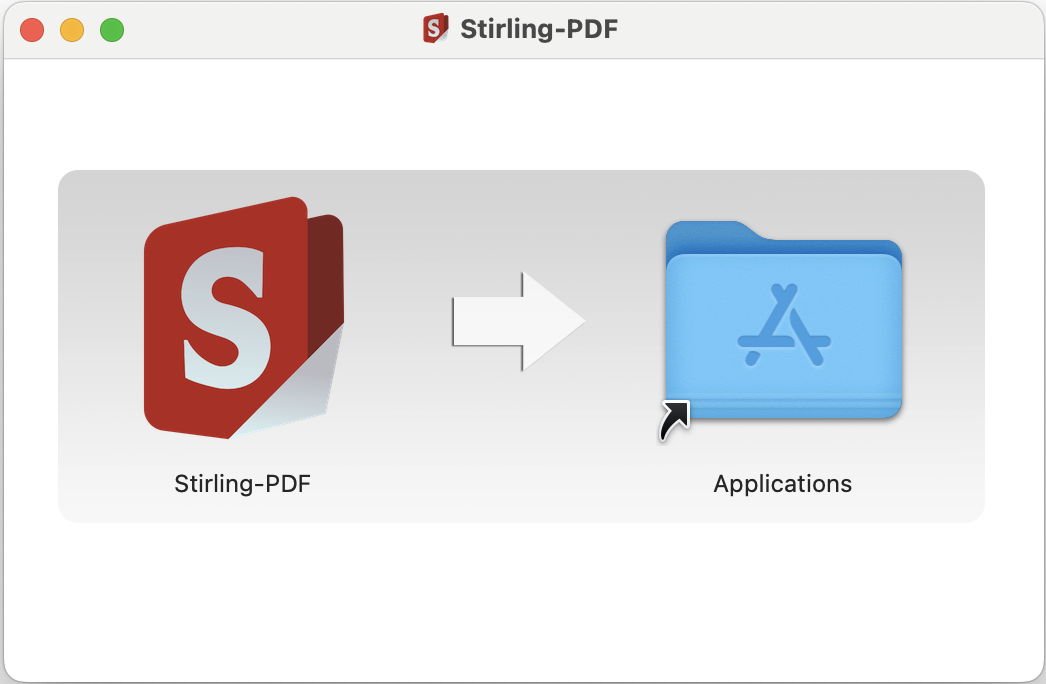
2. Install: open the .dmg and drag Stirling PDF to your Applications folder.
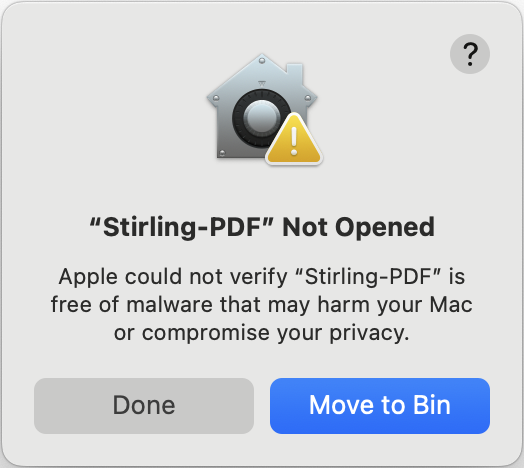
3. First-time launch (Gatekeeper): macOS blocks the app on first launch because it's not from the App Store.
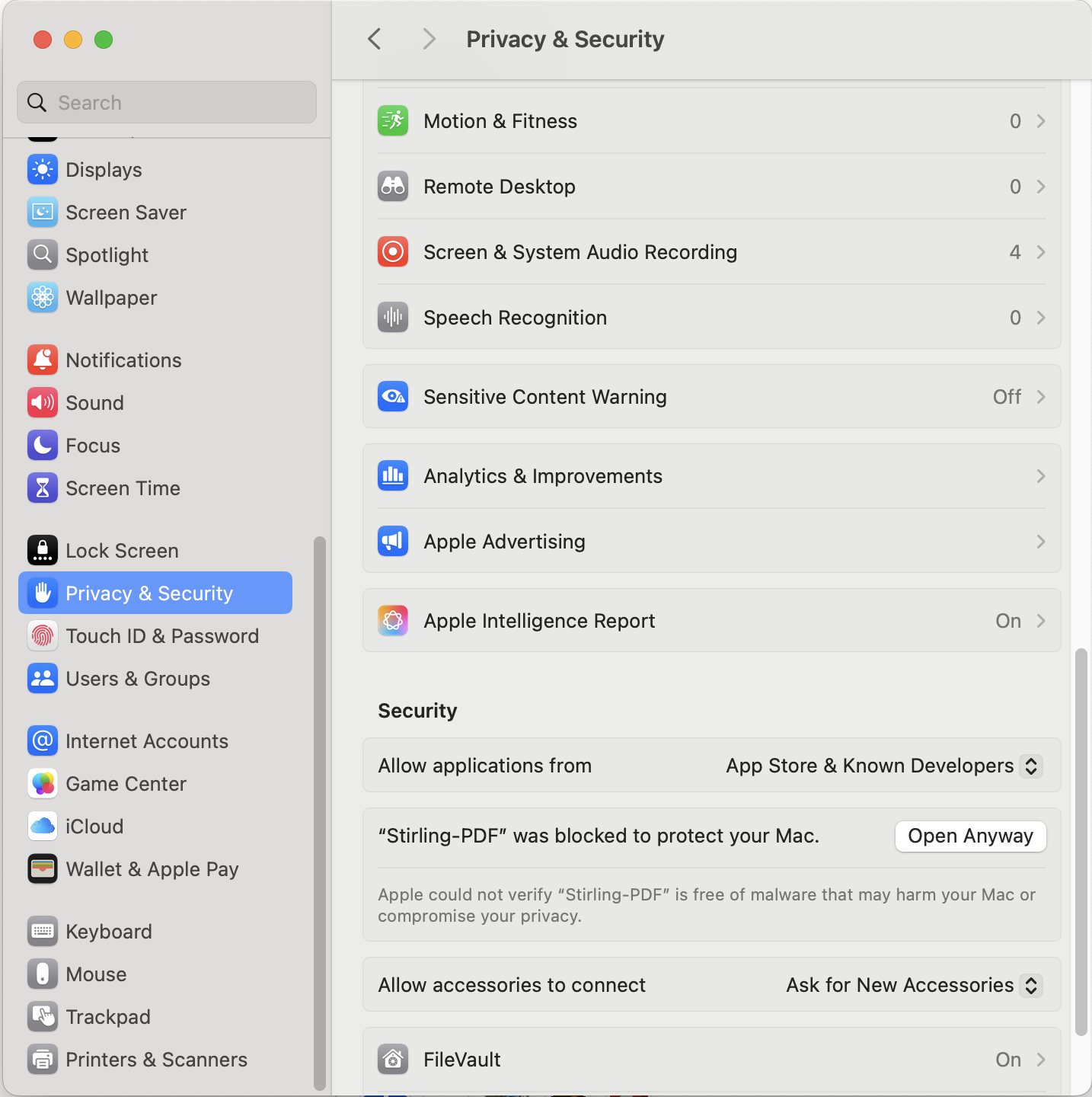
Open System Settings → Privacy & Security, scroll to the Security section, click "Open Anyway" next to the Stirling PDF message, then launch again.
brew tap Stirling-Tools/stirling-pdf
brew install --cask stirling-pdf
Updates come through brew upgrade:
brew upgrade --cask stirling-pdfUsing the Desktop App#
- Launch Stirling PDF
- Start using local PDF tools right away - no login needed
- Upload or drag-and-drop files into the window
- Optionally connect to Stirling Cloud or a self-hosted server for advanced tools like OCR and document conversions
Making Stirling PDF your default PDF viewer:
- Right-click (or Control+click) any PDF file
- Select "Get Info"
- Under "Open with", choose Stirling PDF
- Click "Change All" to apply to all PDFs
- Confirm when prompted
Benefits of desktop app:
- Files stay on your Mac (not in browser storage)
- Work without internet connection
- Native performance (especially on Apple Silicon)
- Unlimited file storage
- Menu bar integration
- macOS gestures and features work
Multiple windows:
- Press Cmd+N to open an empty new window
- Use Open in new window from the My Files page to open files in a separate window
Connection modes#
You can pick one of three connection modes. See Modes for how each mode is licensed.
- Bundled local backend (default): the app runs its own copy of Stirling PDF on your Mac, no setup or login, fully offline.
- Stirling Cloud: sign in for advanced server-side tools.
- Self-hosted Server: enter the URL of your own Stirling PDF instance (e.g.,
http://192.168.1.53:8080) for full control over your data.
Managed deployment (Jamf / MDM)#
To pre-configure and lock the app across managed Macs - server URL, connection lock, and update behaviour - see Managed Desktop Deployment.
Server Version (For Hosting and Sharing)#
Want to host Stirling PDF on a Mac server for multiple users? Use the JAR file version.
Prerequisites#
Install Java 25 (required for server version):
# Install Homebrew if you don't have it
/bin/bash -c "$(curl -fsSL https://raw.githubusercontent.com/Homebrew/install/HEAD/install.sh)"

# Install Java 25
brew install openjdk@25

# Add to your PATH (add to ~/.zshrc to make permanent)
# Using `brew --prefix` keeps this correct on both Apple Silicon (/opt/homebrew) and Intel (/usr/local)
export PATH="$(brew --prefix openjdk@25)/bin:$PATH"
JAR Downloads#
Stirling PDF comes in three different JAR files:
Stirling-PDF-with-login.jar (Recommended - Full Features):
- Download: Stirling-PDF-with-login.jar
- Bundles frontend UI + backend server in one file
- Includes authentication and additional features - requires user login (default credentials:
admin/stirling) - Recommended for all users - personal, shared, or enterprise deployments
Stirling-PDF.jar (Plain JAR - Basic Features):
- Download: Stirling-PDF.jar
- Bundles frontend UI + backend server in one file
- Basic version - no authentication, core features only
- Only use if you require no login at all and don't mind missing certain features
Stirling-PDF-server.jar (Backend Only - Advanced):
- Download: Stirling-PDF-server.jar
- Backend server only (no bundled UI)
- No authentication - API access only
- For desktop app backend, custom frontend, or API integrations
Running the Server#
-
Download your preferred JAR file (see above)
-
Open Terminal and navigate to the download folder:
bashcd ~/Downloads # Or wherever you saved the JAR -
Run Stirling PDF:
bashjava -jar Stirling-PDF.jar -
Access via browser at
http://localhost:8080 -
Share with others on your network at
http://your-mac-ip:8080
Creating a Convenience Script#
For easier launching, create a startup script:
-
Create the script:
bashnano ~/run-stirling.sh -
Add these contents:
bash#!/bin/bash cd ~/Downloads # Change to where your JAR is located java -jar Stirling-PDF.jar -
Save and exit (Ctrl+X, then Y, then Enter)
-
Make it executable:
bashchmod +x ~/run-stirling.sh -
Run anytime with:
bash~/run-stirling.sh
Optional Dependencies#
Install these via Homebrew to enable additional features like advanced document conversion or PDF compression:
# Install Homebrew if needed
/bin/bash -c "$(curl -fsSL https://raw.githubusercontent.com/Homebrew/install/HEAD/install.sh)"

# Install dependencies as needed
brew install openjdk@25          # Required
brew install qpdf                # PDF compression
brew install --cask libreoffice  # Document conversion
brew install tesseract           # OCR functionality
brew install tesseract-lang      # Additional OCR languages
brew install poppler             # PDF to HTML conversion
pip3 install weasyprint          # URL to PDF conversion
pip3 install unoserver           # File to PDF conversion
For Tesseract OCR, add to config/settings.yml (generated once you first run the jar):
system:
  tessdataDir: /usr/local/share/tessdata
Quick Troubleshooting#
- Java not found? Add to
~/.zshrc(works on both Apple Silicon and Intel):bashexport PATH="$(brew --prefix openjdk@25)/bin:$PATH" - Verify installations with:
[command] --version(e.g.,java --version) - LibreOffice issues? Ensure no LibreOffice processes are running
- Need help? Visit GitHub Issues
Starting unoserver alongside Stirling PDF#
To ensure that unoserver is running alongside Stirling PDF, you need to start it with the following command:
unoserver --port 2003 --interface 0.0.0.0You can add this command to your startup script or systemd service file to ensure it starts automatically with Stirling PDF.
